Registering an Employee only takes a few simple steps. You will be able to create an order and register each kit to an employee right before they have their test done.
You may also watch this instructional video after accessing your account:
Follow the steps below and reach out if you have any questions!
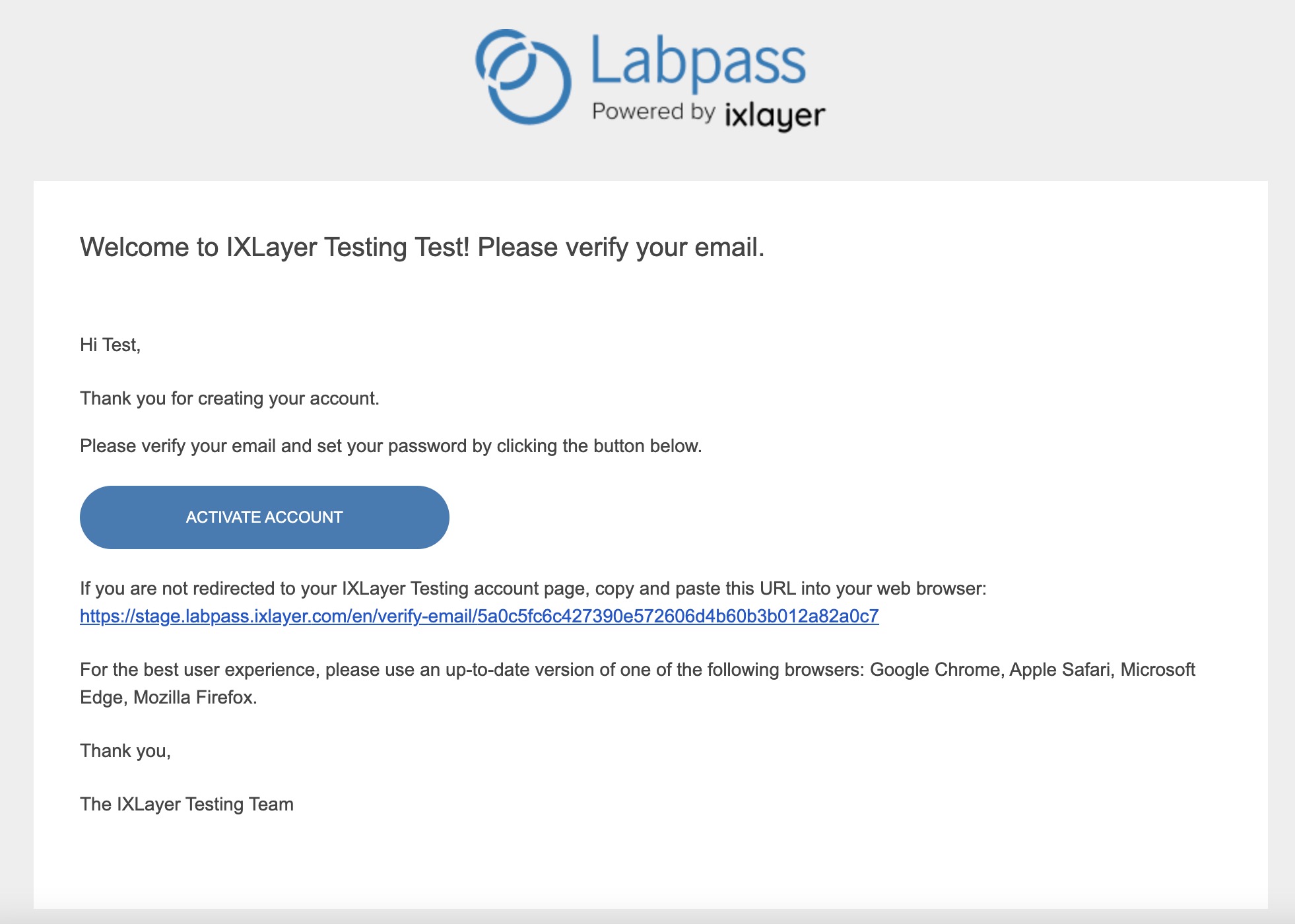
- Press the Activate Account button from the link the the company email, which will open your web browser to the IXLayer admin website.
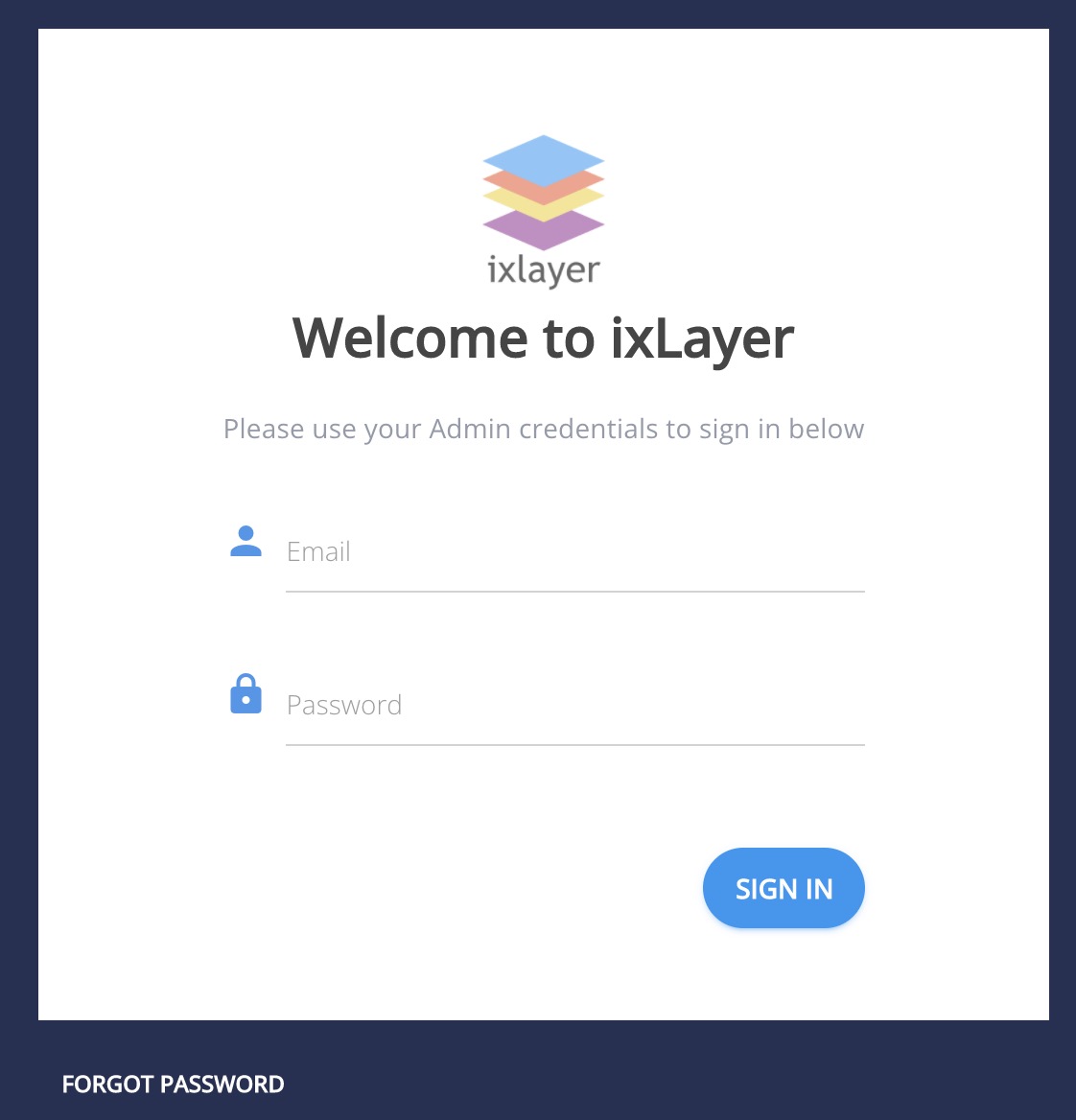
- Enter your email address and temporary password, which you will need to change after you first sign in.
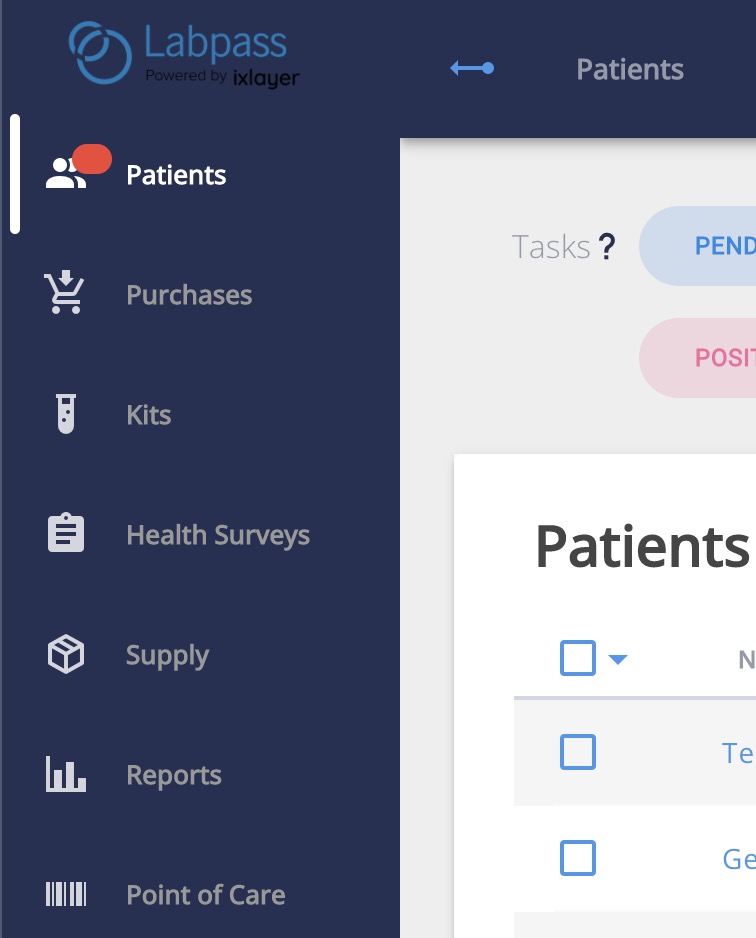
- From the left-hand menu, select Patients
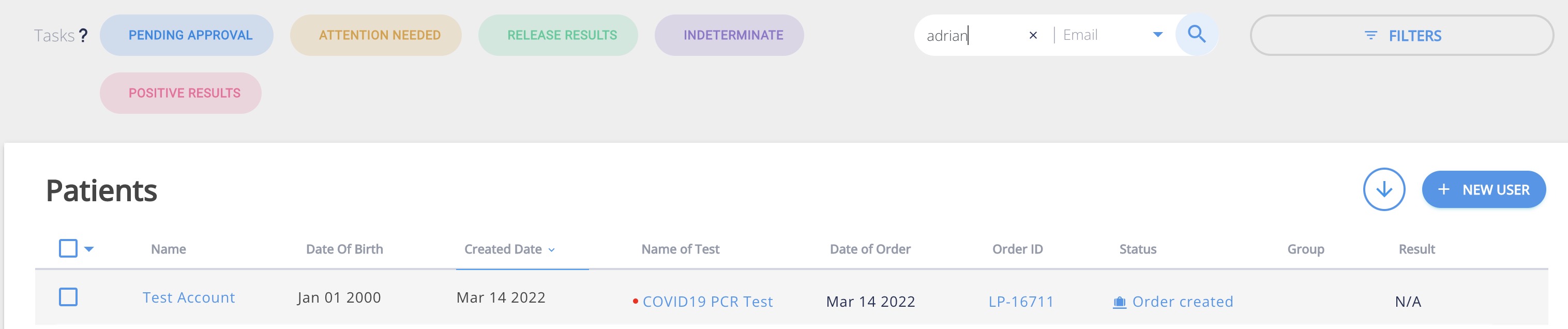
- Search for the employee by entering at least part of their name in the Search Field; you can also search by email address or phone number. To make it easy, the system uses predictive text. Even if you just enter "bry" you will pull up all employees whose name contains that string. If the employee does not have an order:
- Have them create their own order and come back once complete
- you can create a new order for them

- Click on the employee's name. Read to them the name you see on the screen to confirm you have the right employee. If there is any question, ask the employee their date of birth and confirm on the screen.
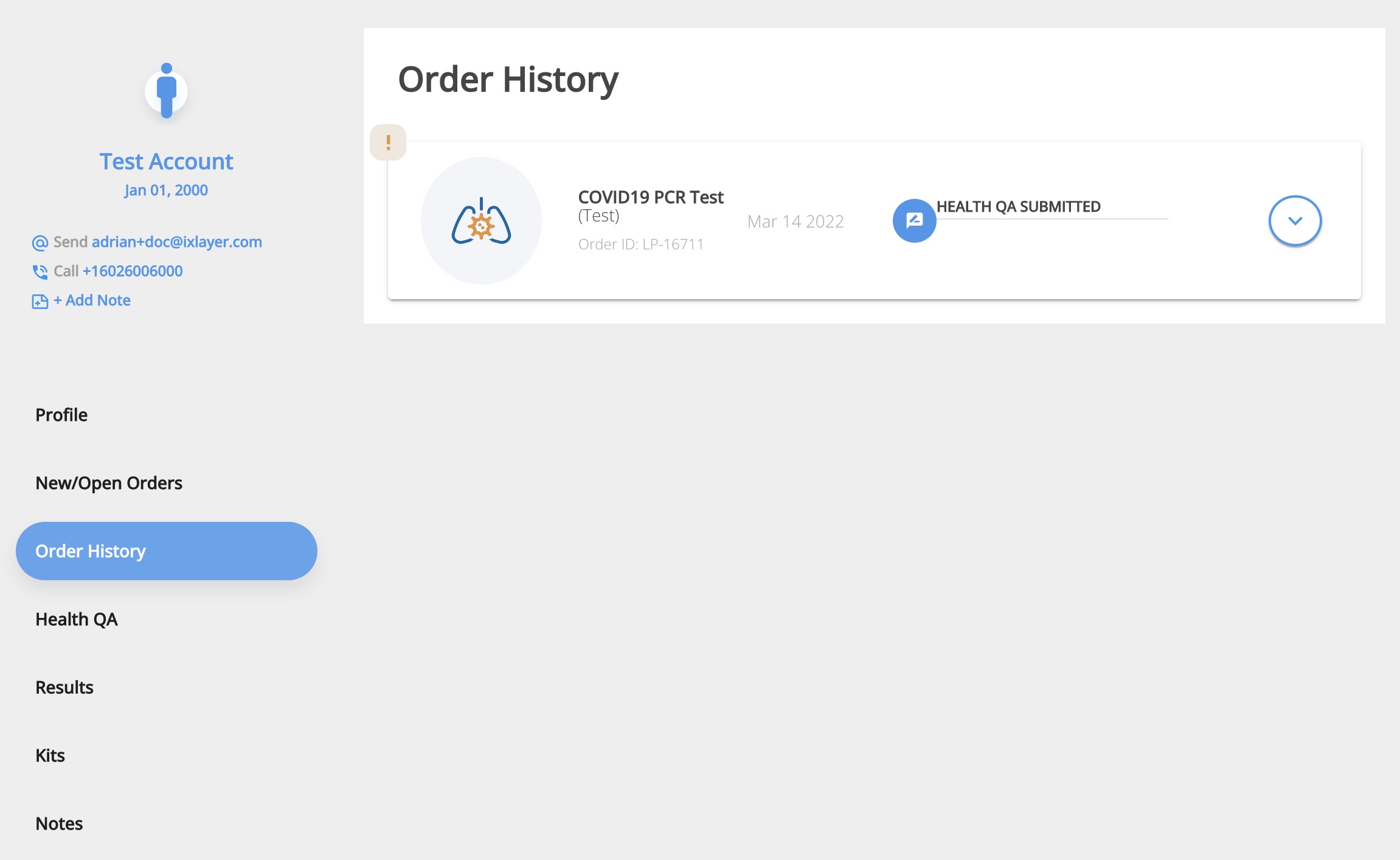
- Select Order History form on the left menu. Click on the appropriate order to expand it and click on the Info section.
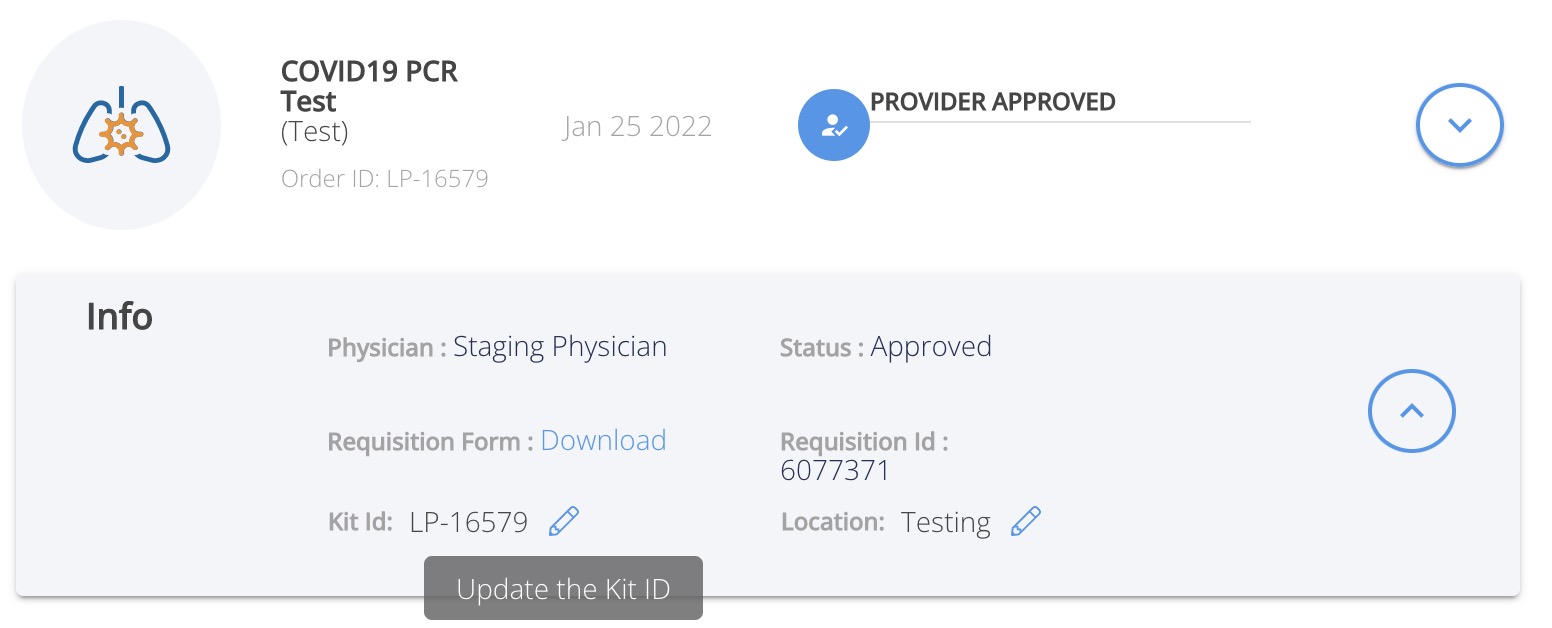
- Click on the pencil next to the kit ID to enter or update. Click the Submit button once the kit ID has been entered or updated.
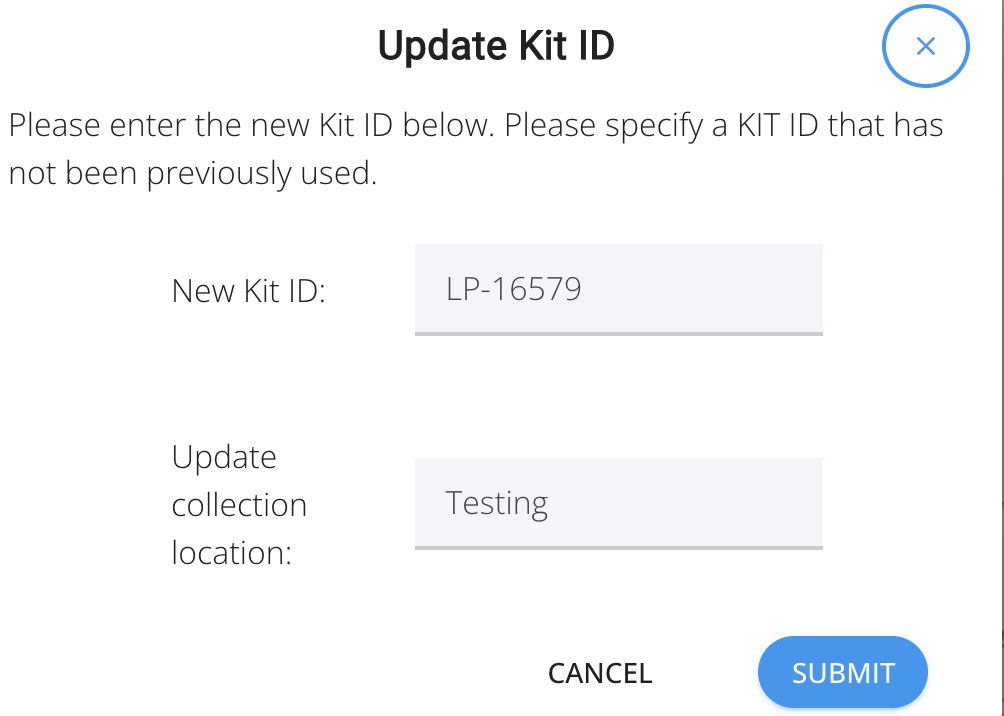
When done registering the kit for the employee, you will see "Kit Registered." You may then send the employee into the testing area with their kit. The employee does NOT need to come back to you after their test is done.